
Turning video into text sounds simple until you’re staring at a 45-minute recording, multiple speakers, background noise, and the clock ticking. If you’re wondering how to transcribe a video, the good news is there are reliable ways to do it, whether you need a quick transcript for notes, captions for accessibility, or a polished document you can quote in a report.
This guide walks you through the best options for how to transcribe a video, including YouTube, Premiere Pro, iPhone videos, and Instagram Reels, with practical steps and a quality checklist so your transcript is actually usable.
Start here: pick the right transcription method
Before you choose a tool, decide what the transcript is for. The “best” method depends on your end goal.
If you need it fast (and “good enough” is fine)
Use built-in transcripts/captions (YouTube, Instagram) or automatic transcription in an editor/app, then lightly tidy it.
If you need it accurate (quotes, legal, research, client work)
Use a human-reviewed service or a workflow that includes a careful edit pass, timestamps, and speaker labels.
If you need subtitles (SRT/VTT)
Choose tools that export subtitle formats cleanly, and plan time for timing and line breaks.
The 5 most common ways to transcribe a video
1) Use YouTube’s built-in transcript (fastest for YouTube clips)
If the video already has captions, you can usually pull a transcript in under a minute.
How to transcribe a YouTube video to text (desktop):
- Open the video.
- Expand the video description (often “More”).
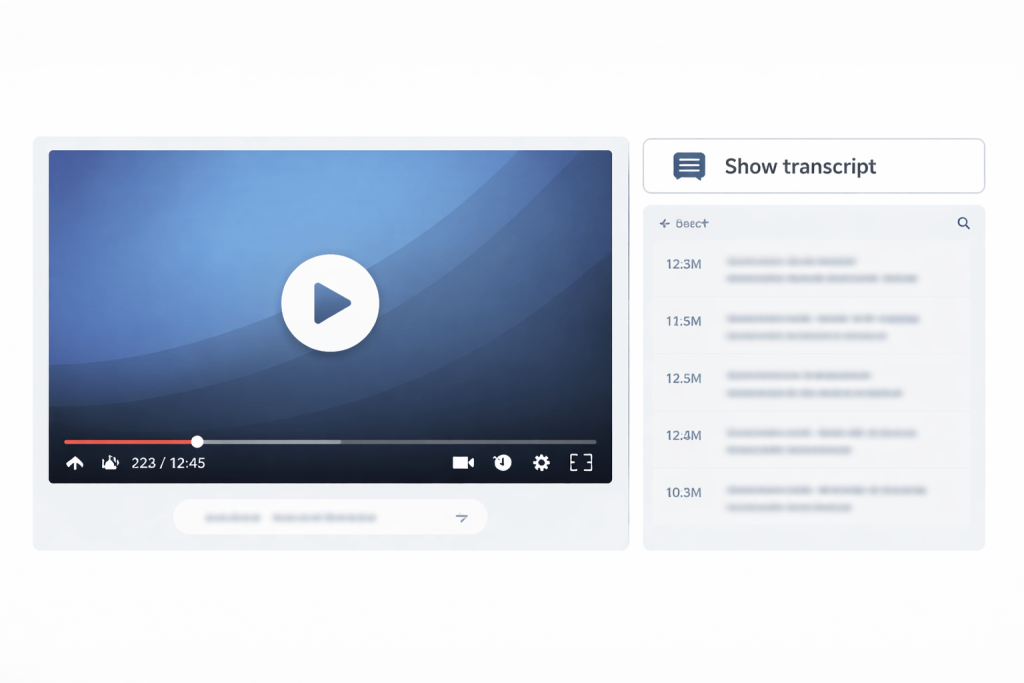
- Select Show transcript.
- Copy the transcript text and paste it into your document.
- Optional: remove timestamps if you want a clean reading version.
Best for: research, quoting short sections, quick summaries, content planning
Watch-outs: auto-captions can mishear names, acronyms, and strong accents; punctuation may be minimal
Tip: If you can’t see a transcript, the video may not have captions enabled. In that case, you’ll need a different method below.
2) Use an automatic transcription tool (best balance of speed + control)
Automatic transcription can be very effective when:
- audio is clear
- speakers don’t overlap constantly
- the topic isn’t packed with specialist jargon
A practical workflow that keeps errors down:
- Export the audio (or upload the video directly).
- Run automatic transcription.
- Review while listening at 1.0x–1.25x speed.
- Fix names, numbers, and technical terms first.
- Add punctuation, paragraphs, and headings last.
Best for: meetings, webinars, interviews, training videos
Watch-outs: speaker diarisation (speaker separation) can be unreliable; always verify quotes before publishing
3) Transcribe inside Adobe Premiere Pro (great for editors)
If you already edit in Premiere Pro, it can be faster to keep everything in one place.
How to transcribe a video in Premiere Pro (typical workflow):
- Import your footage and place it on the timeline.
- Open the Text/Transcript panel.
- Choose Transcribe (clip or sequence, depending on your project setup).
- Let it process, then review the transcript while playing the timeline.
- Export the transcript (or use it for text-based editing, captions, and finding moments quickly).
Best for: YouTubers, agencies, editors, content teams
Watch-outs: noisy audio will still create messy transcripts; you’ll get the best results after basic audio cleanup
4) Transcribe an iPhone video (built-in option + reliable workflow)
If the video is on your iPhone, you have two practical routes:
Option A: Use built-in Live Captions (quick capture)
Live Captions can display transcribed audio from apps and iPhone audio. It’s useful for grabbing rough text quickly.
How to transcribe an iPhone video using Live Captions:
- Turn on Live Captions in Accessibility settings.
- Play your video with sound on.
- Enable Live Captions and capture the text as it appears.
- Paste into Notes or a document, then tidy formatting.
Best for: quick drafts, reminders, rough notes
Watch-outs: it’s not designed as a “perfect export transcript” tool, so formatting and completeness can vary
Option B: Export the file and transcribe it properly (best quality)
- Share the video to Files/Drive or send it to your computer.
- Run transcription using an editor or transcription tool.
- Do a focused edit pass (names, numbers, key terms).
Best for: anything you’ll publish, send to clients, or quote
5) Transcribe an Instagram Reel (captions first, transcript second)
Instagram’s captioning is mainly designed for on-screen captions, but you can still use it to get text quickly.
How to transcribe an Instagram Reel:
- Upload or record the Reel.
- Add captions (often via the Captions sticker or CC option, depending on your app version).
- Let it auto-generate captions.
- Review and correct obvious mishears (names, slang, brand terms).
- Save the Reel.
- If you need a full transcript for reuse elsewhere, copy the script from your working notes (or use a transcription workflow from the earlier sections).
Best for: social content repurposing, captions, accessibility
Watch-outs: exported text isn’t always easily copyable; treat it as a caption workflow, not a clean transcript workflow
How do you transcribe a video for free (without specialised software)?
If you’re on a tight budget, you can still get a workable transcript with a “playback + dictation” approach.
A free manual workflow that’s slower but dependable
- Open a blank document and create a simple template:
- Title
- Date
- Speakers (if known)
- Notes/Transcript
- Play the video at 0.75x speed.
- Type what you hear in short bursts (5–15 seconds at a time).
- Use timestamps every 30–60 seconds, or at each topic change.
- Do a second pass just for:
- names
- numbers
- terminology
- unclear segments (mark as [inaudible 03:12] rather than guessing)
This method is best when: accuracy matters more than speed and you can’t use paid tools.
What can you use to transcribe a video (tool checklist)
When comparing options, look for these features:
- Speaker labels (Speaker 1 / Speaker 2)
- Timestamps (every line or every paragraph)
- Easy editing (find/replace, playback that follows the text)
- Export formats: TXT/DOCX/PDF for reading; SRT/VTT for subtitles
- Security: encrypted upload, confidentiality options, controlled access
- Language support if your video isn’t in English
If you’re handling client work, legal matters, or sensitive information, don’t treat security as optional.
Quality matters: how to get a transcript that’s actually usable
A transcript isn’t just “words on a page”. The difference between a transcript you can skim and one that’s painful is usually formatting and clarity.
The clean transcript checklist (use this before you hit “send”)
- Speaker changes are clear (new line per speaker)
- Paragraphs break naturally by topic, not by random line length
- Key terms are consistent (choose one spelling for names and acronyms)
- Numbers are verified (dates, prices, addresses, case numbers, metrics)
- Unclear audio is marked transparently (don’t guess)
- Confidential data is handled correctly (redact if required)
Verbatim vs intelligent verbatim (choose one on purpose)
- Verbatim: captures every word and false start (useful for legal or detailed analysis)
- Intelligent verbatim (clean verbatim): removes filler words and stumbles while keeping meaning (best for business, content, readability)
A lot of people think they want verbatim until they read it.
Troubleshooting: why your transcript looks wrong (and what to do)
“It’s missing whole sentences”
Likely causes:
- captions/transcripts weren’t available for that section
- the audio drops out
- the speaker is too quiet compared to background noise
Fix:
- improve audio first (even basic noise reduction helps)
- re-run transcription, then manually patch the missing parts
“Names and acronyms are a mess”
Fix:
- create a glossary before editing (names, brands, project terms)
- do one search/replace pass across the whole transcript
“Multiple speakers are blended together”
Fix:
- switch to manual speaker labelling during review
- if you need accurate diarisation, plan for human review
When it’s worth using a professional transcription service
If any of these apply, you’ll usually save time (and avoid risk) by outsourcing:
- the video is long (over 30–60 minutes)
- multiple speakers overlap
- you need legal, medical, technical, or research-grade accuracy
- the transcript will be published, quoted, or used as evidence
- you need strict confidentiality and controlled handling
- you need timestamps, speaker labels, and consistent formatting at scale
A practical “cost of getting it wrong” test
Ask: What happens if a name, number, or quote is wrong?
If the answer is “complaint, compliance issue, reputational damage, or lost client trust”, treat accuracy as the priority.
A simple workflow for teams (repeatable and scalable)
If you’re transcribing regularly (content teams, agencies, research teams), use a process that scales.
- Intake
- confirm purpose (notes / publish / subtitles)
- confirm format (DOCX, TXT, SRT, VTT)
- confirm style (verbatim vs clean)
- Prep
- extract audio if needed
- list speaker names and key terms
- Transcribe
- run automatic transcription or send to a professional service
- Edit pass
- fix key terms first
- then punctuation and formatting
- QA pass
- spot-check tricky sections
- verify numbers and names
- Deliver
- include a short summary + action points if useful
- store securely with clear version naming
Need a transcript you can rely on?
If you’d rather not spend your afternoon fixing timestamps, speaker labels, and misheard names, Transcribe Lingo can turn your video or YouTube content into a clean, publication-ready transcript with the formatting you need (DOCX, PDF, TXT, SRT/VTT) and optional verbatim styles.
A good next step is to upload your file or request a quote with:
- video length
- number of speakers
- turnaround time
- preferred format and style (clean or verbatim)
FAQs
How do you transcribe a video quickly?
Use a built-in transcript if it’s a YouTube clip with captions, or run automatic transcription and do a targeted edit pass for names, numbers, and key terms.
How to transcribe a YouTube video to text without typing?
Open the video transcript (if available) and copy the text. If there’s no transcript, download the audio/video and use an automatic transcription tool or a professional service.
How to transcribe video on YouTube if there’s no “Show transcript” option?
That usually means captions aren’t available. Try a separate transcription method (Premiere Pro transcription, an automatic transcription tool, or a human transcription service).
How to transcribe a video in Premiere Pro?
Import the footage, open the Text/Transcript panel, run transcription on the clip or sequence, then review and export the transcript or captions.
How to transcribe iPhone video to text?
For quick rough text, use Live Captions while playing the video. For the best results, export the video and transcribe it with a dedicated workflow, then edit for accuracy.
How to transcribe an Instagram Reel?
Use Instagram’s captions feature to generate on-screen text, correct errors, then use your script/notes or a separate transcription workflow if you need a full copyable transcript.
