
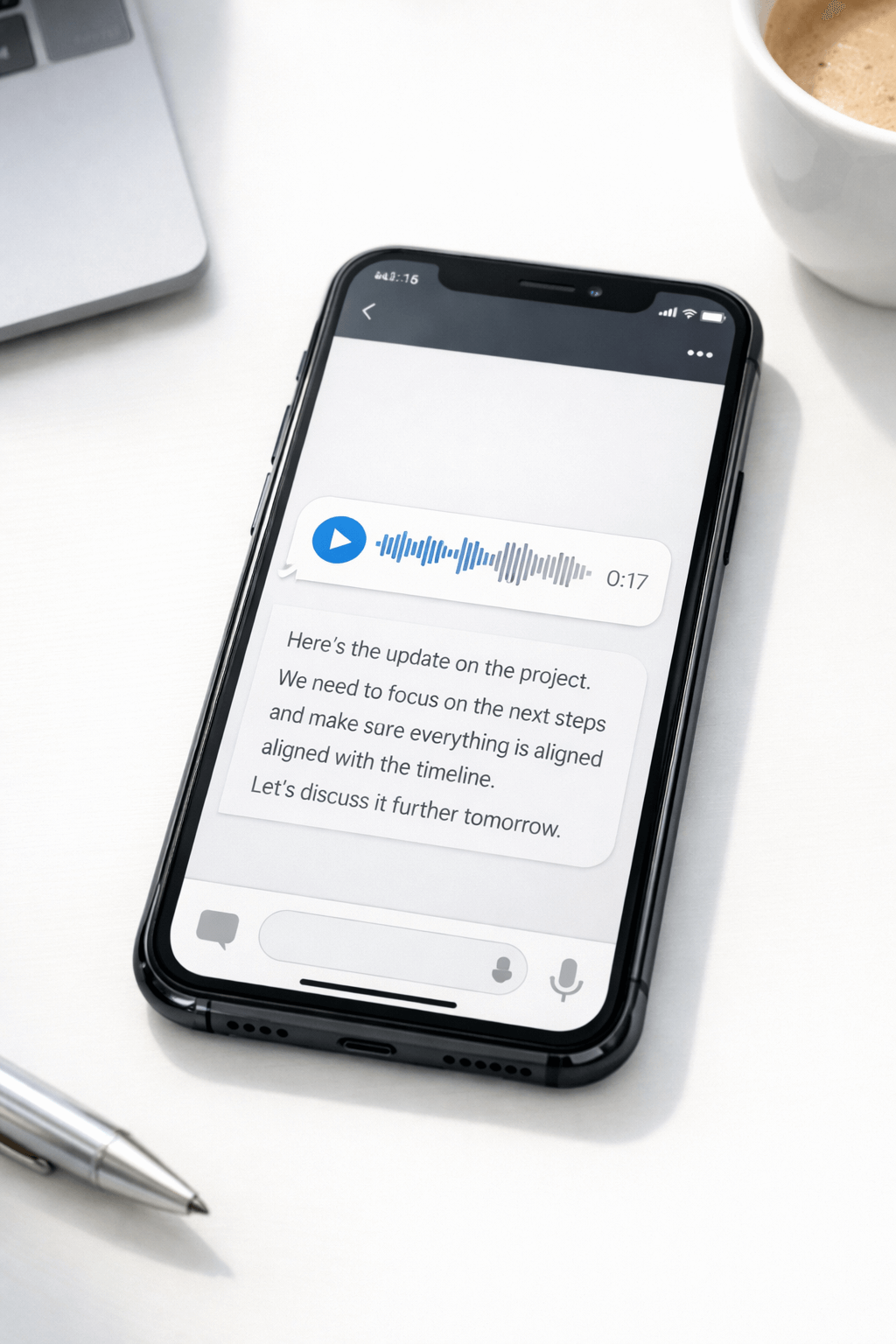
Voice notes are brilliant until you’re in a meeting, on a train, or dealing with a five-minute ramble that hides one important detail. If you’re searching how to transcribe WhatsApp voice notes, you likely want one of these:
- A fast way to read a voice note instead of listening
- Something you can copy, search, and forward
- A cleaner transcript for work, compliance, or client records
This guide covers the native WhatsApp method (where available), plus reliable iPhone and Android alternatives when you can’t see the option, the audio is messy, or accuracy really matters.
The quickest way to transcribe a WhatsApp voice note
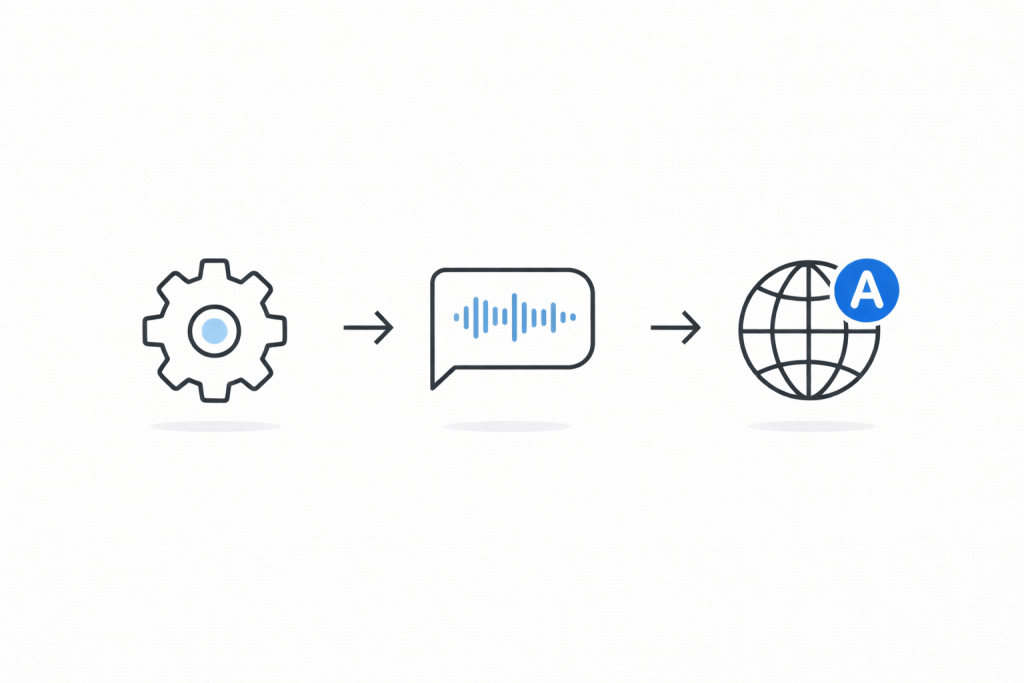
If WhatsApp voice transcripts are available on your device, this is the fastest route:
- Open WhatsApp Settings
- Go to Chats
- Turn on Voice message transcripts and choose your transcript language
- In a chat, press and hold the voice note
- Tap Transcribe
That’s it. A text transcript should appear beneath the audio message.
Can WhatsApp transcribe voice notes?
Yes — WhatsApp has a built-in transcription feature for voice messages, but availability can vary by device, region, app version, and supported languages.
If you can’t see the transcription settings or the “Transcribe” option, don’t worry — you still have strong alternatives (covered below), including live captions on iPhone and Live Transcribe on Android.
Before you start: 30-second checklist for better results
Transcription quality often comes down to setup + audio conditions:
- Update WhatsApp (older versions may not show the feature)
- Set the correct transcript language (mismatches are a top cause of “transcript not available”)
- Check background noise (cars, cafés, wind, music reduce accuracy)
- Use headphones when replaying audio for live transcription tools
- If it’s important: don’t rely on a single auto-transcript — verify with the audio
How to transcribe a voice note on WhatsApp (iPhone)
Use WhatsApp’s built-in voice message transcripts (best if available)
- Open WhatsApp
- Tap Settings
- Tap Chats
- Tap Voice message transcripts
- Turn it on and select your language
- Go back to the chat
- Press and hold the voice note, then tap Transcribe
Tip: If the transcript appears but looks incomplete, replay the audio once and try again. Some devices take a moment to generate the full text.
Copy the transcript into Notes or email (for searchable records)
Once the transcript appears:
- Press and hold the transcribed text (or the message area) and copy
- Paste into Notes, Email, or your project tracker
If you regularly need tidy, shareable transcripts (speaker labels, timestamps, consistent formatting), use a professional workflow instead of copy/paste (see “When accuracy matters” below).
How to transcribe WhatsApp voice notes on iPhone when the WhatsApp option isn’t there
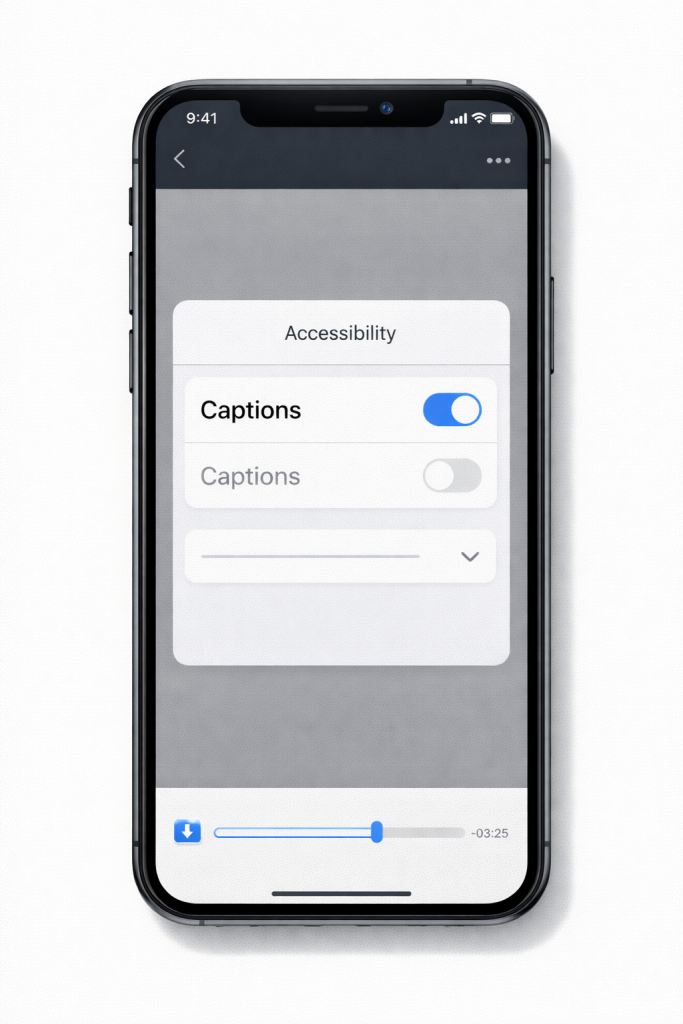
If the “Voice message transcripts” toggle is missing, your best iPhone fallback is Live Captions — it can transcribe audio from apps.
Method: iPhone Live Captions (works across apps)
- Go to Settings → Accessibility → Live Captions
- Turn Live Captions on
- Start Live Captions and choose iPhone Audio
- Play the WhatsApp voice note on speaker (or through headphones)
- When captions appear, use More Options → Copy Captions
- Paste into Notes, email, or a document
Best practice: For clearer results, reduce background noise and keep the audio volume steady.
How to transcribe WhatsApp voice notes (Android)
Use WhatsApp’s built-in transcripts (best if available)
- Open WhatsApp
- Tap ⋮ (three dots) → Settings
- Tap Chats
- Enable Voice message transcripts
- Choose your transcript language (and download it if prompted)
- In the chat, press and hold the voice note → tap Transcribe
Expand the transcript and review quickly
On many devices, transcripts can be expanded beneath the audio note. Skim for names, dates, addresses, and action items — then confirm anything critical by replaying the relevant part.
Can you transcribe WhatsApp voice notes on Android if the WhatsApp option is missing?
Yes. Your strongest Android fallback is Google Live Transcribe.
Method: Google Live Transcribe (great for quick reading)
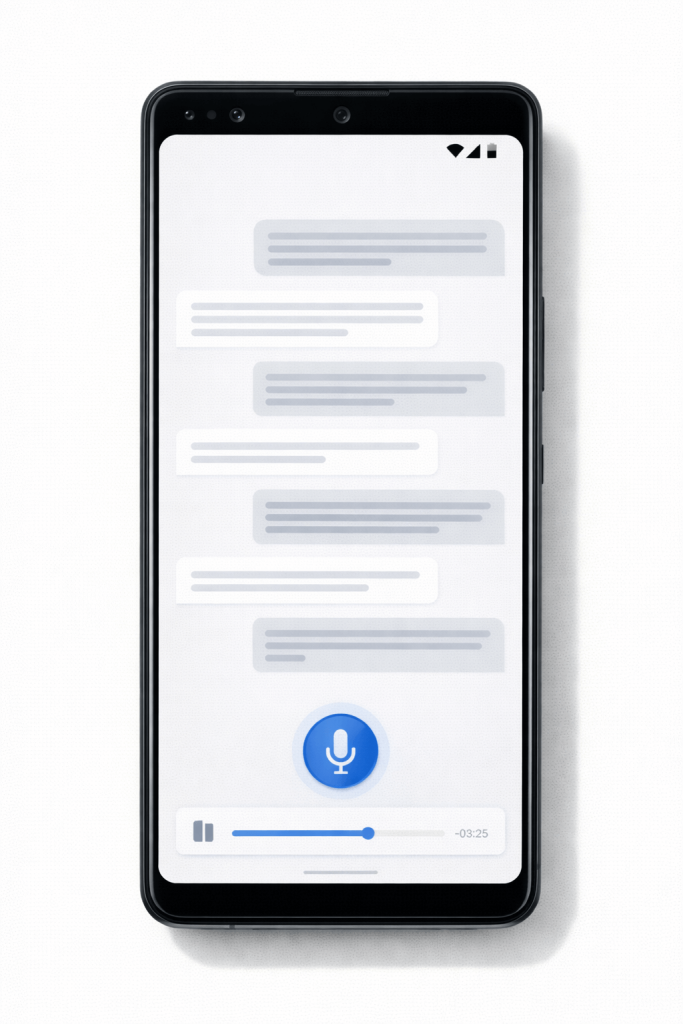
- Install Live Transcribe & Sound Notifications (if it’s not already installed)
- Open Live Transcribe
- Play the WhatsApp voice note on speaker (or use a second device for cleaner capture)
- Let Live Transcribe capture the audio and generate text
- Copy the text into your notes or document
Pro tip: The cleanest setup is two devices:
- Device A plays the WhatsApp voice note
- Device B runs Live Transcribe close to the speaker
This reduces “feedback” issues and improves clarity.
How to transcribe WhatsApp audio on iPhone (export the file first)
If you want a more accurate transcript — or need to upload the audio to a secure service — export the voice note as a file.
iPhone: Save/export a WhatsApp voice note
- Press and hold the voice note
- Tap Forward
- Tap the Share/Export icon
- Choose where to save it (Files, Notes, email to yourself, etc.)
Now you can:
- Store it as a record
- Share it with colleagues
- Upload it for professional transcription
How to transcribe WhatsApp voice notes on desktop (WhatsApp Web / Desktop)
Desktop is useful when you want to archive audio and build a clean workflow.
Desktop approach (fast for saving + processing)
- Open WhatsApp Desktop/Web
- Find the voice note
- Use the download/save option (varies by platform)
- Store it in a project folder (Client → Date → “Voice note 01”)
Once saved, you can run transcription using your chosen method (professional service, company workflow, or approved internal tools).
The “choose the right method” guide (privacy, speed, accuracy)
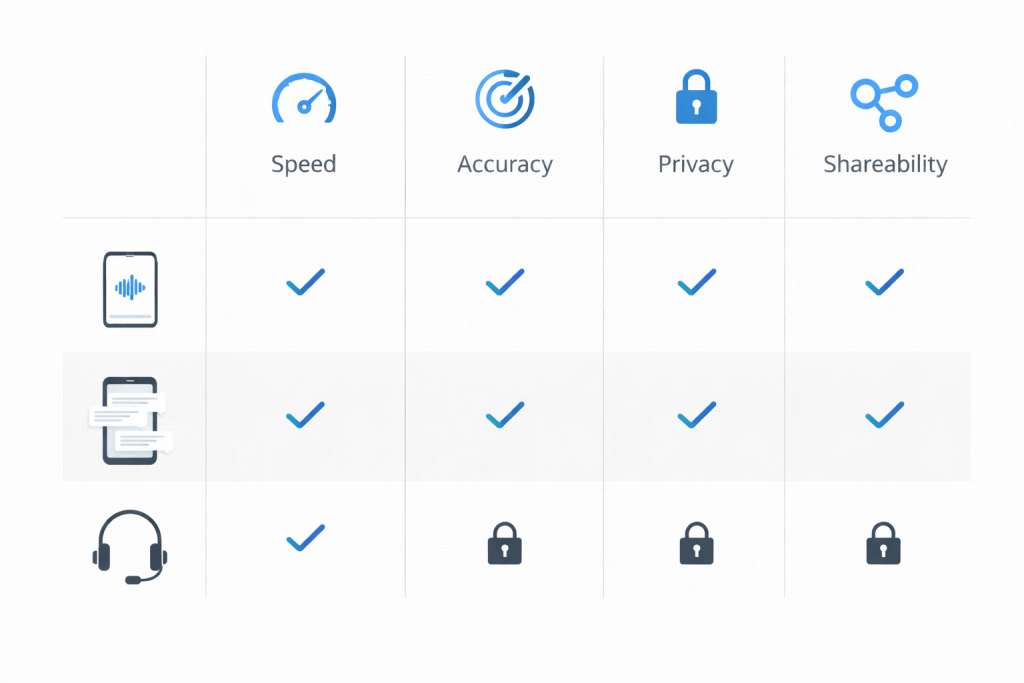
Use this as a quick decision tool:
| What you need | Best option | Why |
| Fastest read-only transcript | WhatsApp built-in transcripts | One tap, inside the chat |
| Transcribe any voice note even if WhatsApp option is missing | iPhone Live Captions / Android Live Transcribe | Works across apps |
| A transcript you can share with clients | Professional transcription | Clean formatting + QA |
| Sensitive audio (legal, HR, medical, complaints) | On-device tools or a secure human service | Better control over risk |
| Speaker labels, timestamps, verbatim detail | Professional transcription | Consistent, audit-ready output |
Common issues (and how to fix them)
“Transcript not available”
This typically happens when:
- Your transcript language doesn’t match the audio language
- The language isn’t supported on your device yet
- The audio is too noisy or unclear
- The feature hasn’t rolled out to your account/app version
Fixes to try:
- Confirm Voice message transcripts is enabled
- Switch transcript language to match the speaker
- Update WhatsApp and restart your phone
- Ask the sender to re-record in a quieter place (or to slow down)
- Use Live Captions (iPhone) or Live Transcribe (Android) as backup
The transcript is wrong (names, numbers, addresses)
Auto transcription commonly struggles with:
- Accents + fast speech
- Background noise
- Proper nouns (people, streets, brands)
- Mixed-language sentences
What to do:
- Recheck the audio for key details
- Ask for spelling in a follow-up message
- For business or legal use, upgrade to a proofread, formatted transcript
How to get more accurate WhatsApp voice-to-text results (10 practical tips)
- Lower the noise: turn off TV/music, move away from traffic.
- Keep volume steady when replaying (especially with Live Captions/Live Transcribe).
- Ask for shorter voice notes (two 30-second notes beat one 3-minute note).
- Ask the sender to pause between sentences (improves punctuation and clarity).
- Spell names once in a text message after the voice note.
- Use headphones if you’re transcribing via live tools.
- Avoid speakerphone echo (echo ruins recognition).
- Confirm the language setting before transcribing.
- Capture action items separately (copy key tasks into a checklist).
- Don’t treat auto-transcripts as final for high-stakes contexts.
When a WhatsApp transcript needs to be “client-ready”
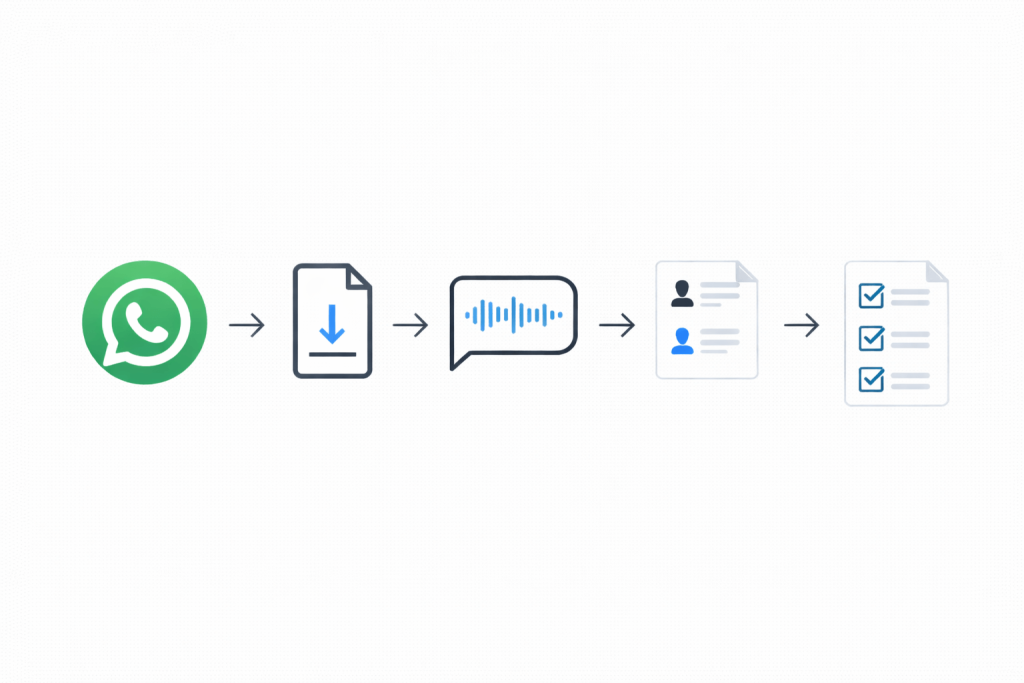
If you’re handling customer voice notes, sales enquiries, interviews, research responses, HR conversations, or anything that might be forwarded or stored, a rough on-screen transcript often isn’t enough.
A client-ready transcript usually needs:
- Clean punctuation
- Speaker labels (Client / Agent / Interviewer)
- Timestamps (optional but helpful)
- Consistent formatting for sharing or auditing
- Confidential handling (especially for sensitive content)
If you want a professional transcript you can share with confidence, use Transcribe Lingo’s transcription services and send the saved WhatsApp audio file through the request form.
For detailed, word-for-word requirements (hearings, investigations, complaints, interviews), use verbatim transcription so nothing important gets “smoothed out” unintentionally.
“We’re glad to have Transcribe Lingo as our long-term transcription partner, never lets you down!”
Need it scoped quickly? Request a free quote or book a meeting and include:
- the audio length
- the language(s)
- whether you need verbatim, speaker labels, or timestamps
- your deadline
A simple format you can reuse (copy/paste template)
Use this structure when you’re turning WhatsApp voice notes into a record:
File: WhatsApp Voice Note – [Client/Project] – [Date]
Context: Why the voice note matters (one line)
Transcript
- Speaker:
- [Text…]
- Speaker:
- [Text…]
Action items
- Task 1
- Task 2
Key details to confirm
- Names:
- Numbers/amounts:
- Dates/times:
FAQs
How do I transcribe a voice note on WhatsApp?
Enable Voice message transcripts in WhatsApp settings (Chats), choose a language, then press and hold the voice note and tap Transcribe.
Can WhatsApp transcribe voice notes automatically?
On many devices you still initiate it per message by tapping Transcribe, but settings can vary. If you need consistent transcripts for every message, use a structured workflow (export the audio and process it).
Can I transcribe a WhatsApp voice note if the transcription option is missing?
Yes. On iPhone, use Live Captions. On Android, use Live Transcribe. Both can generate readable text from WhatsApp audio.
How do I transcribe WhatsApp audio on iPhone and save the text?
Use WhatsApp transcripts if available, then copy the text into Notes. If WhatsApp transcripts aren’t available, use Live Captions, copy captions, and paste into Notes.
Are WhatsApp voice note transcripts always accurate?
They can be very useful, but they’re not perfect — especially with noise, accents, names, or mixed languages. For anything important, verify with the audio or use a proofread transcript.
What’s the best way to transcribe WhatsApp voice notes for business use?
Export the audio file and use a professional service so you get clean formatting, optional timestamps and speaker labels, and a transcript you can share internally or with clients.
